 GEAR
GEARRanked · 3 picks
CS2 Launch Options & FPS Optimization Guide (2026)
Optimizing Counter-Strike 2 requires clean Steam launch options and competitive video settings. This guide covers verified launch commands, in-game graphic tweaks, and the hardware necessary to maintain high framerates.
Published 30 August 2026 · Updated 30 August 2026Affiliate links
Essential CS2 Steam Launch Options
Steam launch options allow you to bypass intro videos, set process priority, and optimize CPU thread allocation before the Source 2 engine initializes.
Recommended Launch Commands:
-novid -high +cl_forcepreload 1 -nojoyCommand Breakdown:
-novid: Skips the Valve logo animation at startup for faster loading.-high: Grants CS2 high CPU priority in Windows process management.+cl_forcepreload 1: Forces map assets and models into RAM during loading to prevent stutter during gunfights.-nojoy: Disables joystick support, reclaiming CPU cycles and memory.
Optimal In-Game Video Settings for Maximum FPS
To maintain a steady 240+ FPS during heavy smokes and executes on maps like Inferno or Ancient, use the following competitive graphic settings:
- Main Resolution: 1280×960 (4:3 Stretched) or 1920×1080 (16:9 Native)
- Advanced Video Settings:
- Global Shadow Quality: Medium (allows seeing enemy shadows around corners)
- Model / Texture Detail: Low
- Texture Filtering Mode: Anisotropic 4X or Bilinear
- Shader Detail: Low
- Particle Detail: Low
- Ambient Occlusion: Disabled
- High Dynamic Range (HDR): Quality
- Nvidia Reflex Low Latency: Enabled + Boost
Hardware Synergy: Why Framerates Need High Refresh Monitors
Generates 300 FPS in Source 2 is only half the battle. If your display operates at 60Hz, you only see 60 images per second despite the GPU generating more.
Upgrading to a 180Hz or 240Hz gaming monitor ensures that every frame generated by your system is physically displayed, lowering motion blur during fast 180-degree flicks.
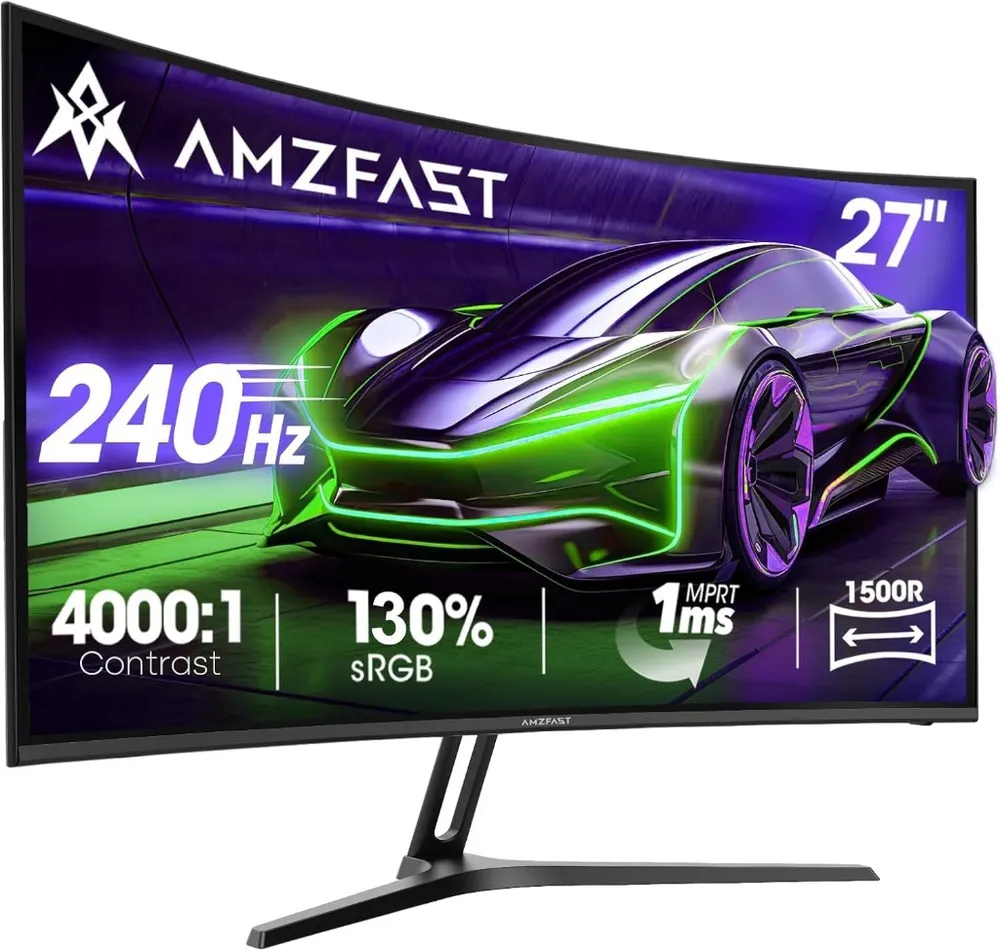
AMZFAST 27" 240Hz
AMZFAST
240Hz speed on a large 27-inch curved panel. Deep 4000:1 contrast ratio makes dark corners in CS2 maps like Mirage and Anubis much easier to spot enemies in.
- Refresh Rate
- 240 Hz
- Response Time
- 1 ms MPRT
- Contrast Ratio
- 4000:1
- Screen Size
- 27 inch 1080p
- 240Hz refresh rate delivers tier-1 tournament motion fluidity
- High 4000:1 static contrast provides deep blacks and high shadow visibility
27-inch at 1080p has lower pixel density than 1440p panels
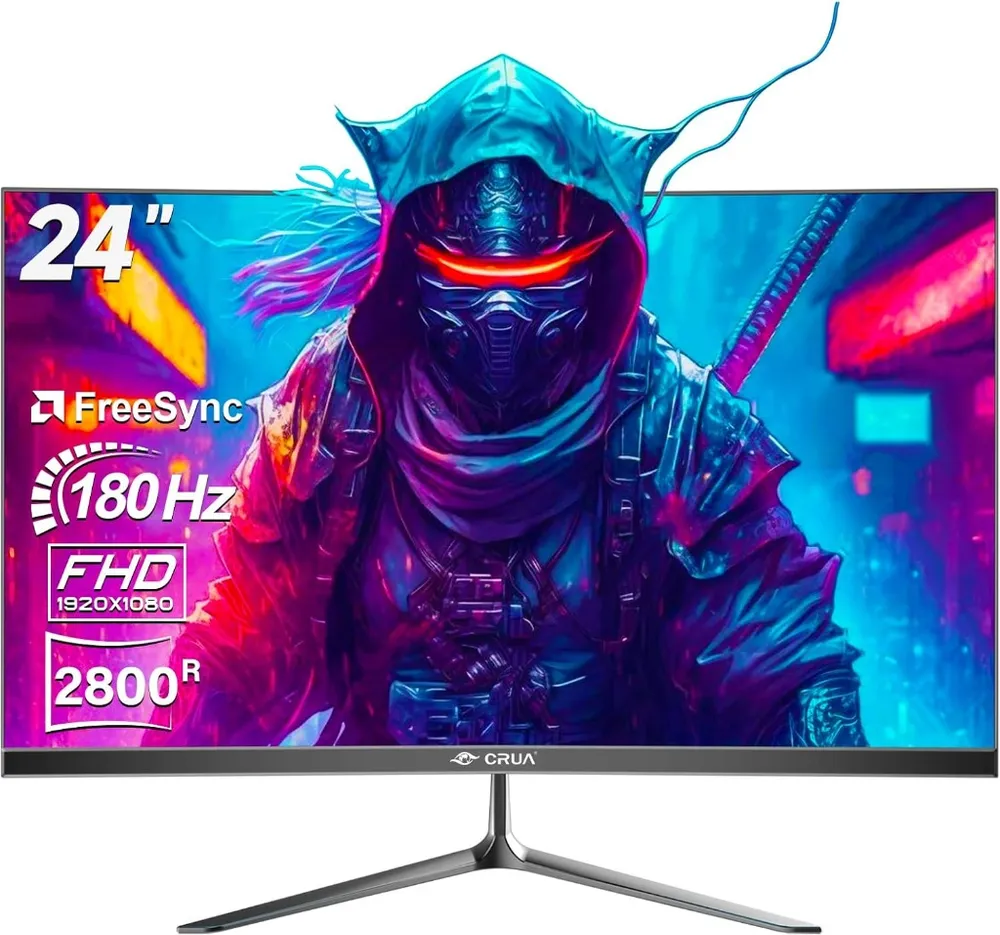
CRUA 24" 180Hz
CRUA
Pushing refresh rates to 180Hz gives competitive players extra motion smoothness for fast crosshair flicks. The subtle 2800R curve provides wide viewing angles without distortion.
- Refresh Rate
- 180 Hz
- Response Time
- 1 ms MPRT
- Curvature
- 2800R Curved
- Resolution
- 1920 × 1080 FHD
- 180Hz refresh rate gives an edge over standard 144Hz displays in fast tactical shooters
- DisplayPort and HDMI inputs make dual-device switching seamless
Built-in speakers are basic; dedicated headsets or speakers are recommended
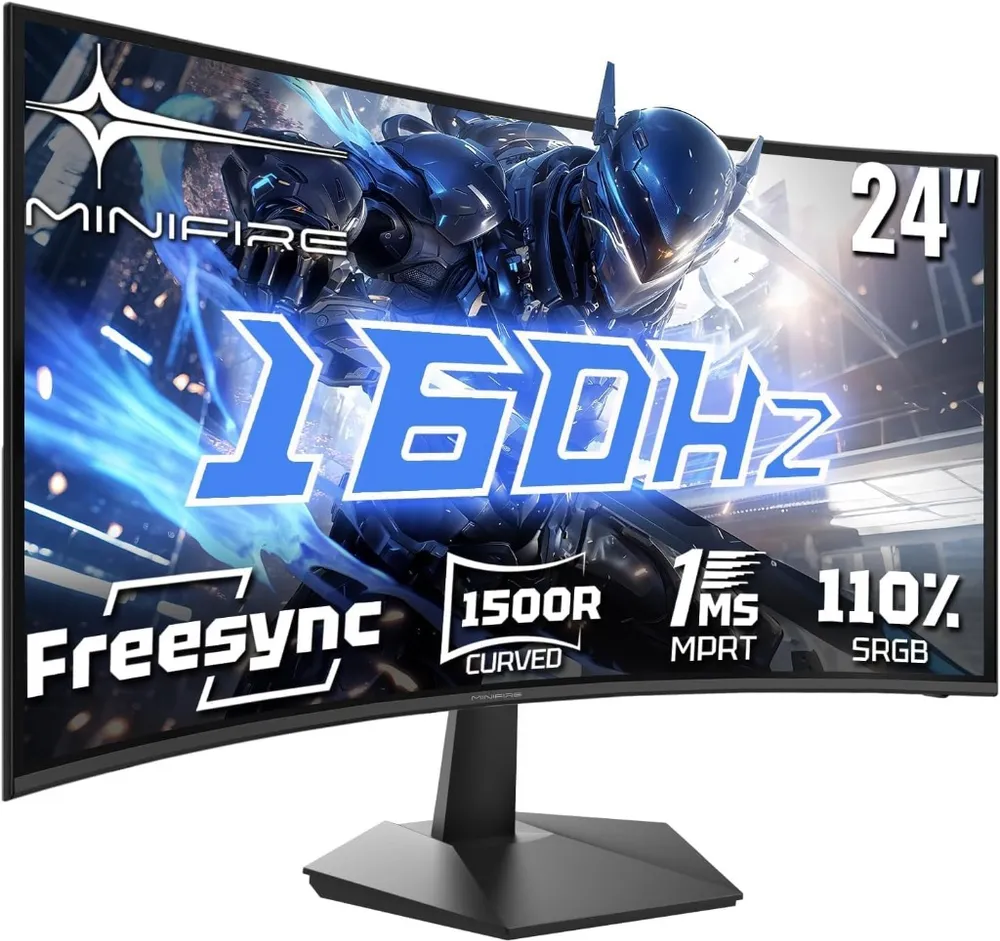
Minifire 24" 160Hz
Minifire
An ultra-accessible entry point into 160Hz gaming. The 1500R curve wraps around your field of view while the 1ms response time keeps motion smooth during fast CS2 counter-strafes.
- Refresh Rate
- 160 Hz
- Response Time
- 1 ms MPRT
- Curvature
- 1500R Curved
- Resolution
- 1920 × 1080 FHD
- 160Hz refresh rate delivers fluid motion for budget FPS setups under €110
- 1500R curvature increases immersion and reduces edge eye-strain during long sessions
Curved panels are less ideal for secondary productivity tasks like spreadsheets
FAQ
Frequently asked
What are the best CS2 launch options in 2026?
The recommended baseline commands are -novid -high -threads [X] +cl_forcepreload 1. Avoid outdated CS:GO commands like -freq or -threads 8 if your CPU uses hybrid architecture.
Does Nvidia Reflex lower input lag in CS2?
Yes, enabling Nvidia Reflex On (or On + Boost) reduces system latency significantly when your GPU usage spikes during heavy smoke and execution executes.