 GEAR
GEARRanked · 2 picks
CS2 4:3 Stretched Resolution (2026): Why 80%+ Pros Use It & Complete Setup
Over 80% of tier-1 Counter-Strike 2 professionals play on 4:3 stretched rather than native 16:9. This guide covers the full setup on all three GPU vendors, the black-bar problem everyone hits, which of the four 4:3 resolutions to choose, and the trade-off nobody mentions.
Published 30 August 2026 · Updated 3 September 2026Affiliate links
Nearly every professional Counter-Strike player, and has been for fifteen years, plays on a resolution that is lower and narrower than the monitor in front of them. On a 1920×1080 screen they set 1280×960 and stretch it sideways until it fills the panel.
It looks wrong the first time. This guide covers why they do it, how to set it up on each GPU vendor, and the part most guides skip — what you give up.
What 4:3 stretched actually means
A 4:3 image on a 16:9 monitor does not fit. Left alone, the game renders in a square-ish box in the middle of the screen with black bars on either side — this is called pillarboxing, and it is the state most people accidentally end up in.
Stretched means the GPU takes that narrower image and scales it horizontally until it covers the full panel. Nothing is added. The same picture is simply made wider, so everything in it — walls, weapons, and player models — is about 33% wider than it should be.
That distortion is the entire point.
How to set up 4:3 stretched in CS2
Two things have to be true at once: the game must render in 4:3, and the GPU must stretch the result. Setting only the first is what produces black bars.
Step 1 — set the resolution in CS2
Open Settings → Video → Video, then set:
| Setting | Value |
|---|---|
| Display Mode | Fullscreen |
| Aspect Ratio | Normal 4:3 |
| Resolution | 1280 × 960 |
Display Mode matters more than it looks. GPU scaling only applies to exclusive Fullscreen. If you leave CS2 in Windowed Fullscreen, Windows composites the image itself and your GPU never gets the chance to stretch it — you get black bars no matter what you set in the driver.
Step 2 — turn on GPU scaling
Nvidia
- Right-click the desktop → Nvidia Control Panel
- Display → Adjust desktop size and position
- Scaling mode: Full-screen
- Perform scaling on: GPU
- Tick Override the scaling mode set by games and programs
- Click Apply
Step 5 is the one people miss. Without it the driver defers to whatever CS2 requests and your setting is quietly ignored.
AMD
- Open AMD Software: Adrenalin Edition
- Gaming → Display (choose your monitor first if you have several)
- GPU Scaling: On
- Scaling Mode: Full Panel
Preserve Aspect Ratio is the setting that keeps the black bars. Full Panel is the one that removes them.
Intel
- Open Intel Graphics Command Center
- Display → General
- Under Scale, choose Stretch full screen (older drivers call it Scale Full Screen)
Intel’s panel has moved between driver generations more than the other two. If the option is missing, check that the display is connected to the integrated GPU and not a discrete card, because the scaling setting lives with whichever GPU drives the panel.
Step 3 — check it worked
Load a map and look at the bottom of your screen. If the HUD reaches the far left and right edges of the monitor, scaling is on. If there is black either side, one of the two steps above did not take — and it is nearly always Display Mode or the Nvidia override checkbox.
Which 4:3 resolution should you pick?
There are four in common use. The pixel counts are what drive the frame-rate difference:
| Resolution | Pixels | vs 1080p | Character |
|---|---|---|---|
| 1024 × 768 | 0.79 M | −62% | Maximum frames, visibly soft |
| 1280 × 960 | 1.23 M | −41% | The professional default |
| 1280 × 1024 | 1.31 M | −37% | 5:4, not 4:3 — even more stretch |
| 1440 × 1080 | 1.56 M | −25% | Sharpest, smallest FPS gain |
Start at 1280×960. It is what m0NESY, ZywOo, NiKo and s1mple all use, and it sits at the point where the image is still sharp enough to identify a head across Dust II Long.
Drop to 1024×768 only if you are chasing frames on old hardware and can live with the softness. Go up to 1440×1080 if your GPU has headroom and you want the clarity back without returning to 16:9.
One clarification, because it causes constant confusion: 1280×1024 is 5:4, not 4:3. It stretches more aggressively than any true 4:3 resolution. Some players prefer exactly that; just know you are choosing it deliberately.
What you gain
Player models are 33% wider
Compressing a 4:3 image into a 16:9 panel widens everything horizontally. Server-side hitboxes do not change — that myth refuses to die — but the target you are trying to click covers more of your screen, and a wider target is an easier one. Through a chokepoint like Banana or Long, where you are shooting at a sliver of a body, that difference is real.
Frames, if the GPU is your limit
1280×960 asks your graphics card for 41% fewer pixels than 1080p. Where that helps is the 1% lows — the dips during a smoke-and-molotov execute onto a bombsite, when the frame rate you actually feel is the worst one, not the average.
The caveat: CS2 is an unusually CPU-bound game. If your GPU is already coasting at 1080p, dropping the resolution frees a bottleneck that was never tight, and you will see very little. Check your GPU usage during a real round before assuming this section applies to you.
What you give up
16 degrees of horizontal vision
CS2 fixes the vertical field of view and derives the horizontal one from your aspect ratio. At 16:9 that is roughly 106°. At 4:3 it is 90°.
Those 16 degrees are the far edges of your screen — the part where an enemy is when they are just beginning to swing wide, or when they are flanking from a doorway at the periphery. On 4:3 they simply are not on your monitor yet.
This is a genuine trade, not a marketing footnote. You are buying wider targets with a narrower window.
Targets cross your screen faster
The same 33% compression that widens player models also means they travel across your view 33% quicker in screen terms. An opponent peeking at the same real speed sweeps past your crosshair faster than you are used to.
Your sensitivity has not changed and neither has your centimetres per 360°. What has changed is the relationship between hand movement and apparent movement — and that takes days, not minutes, to settle. If you want to check the numbers you are working with, the sensitivity converter will show your cm/360°.
A softer image
You are asking a 1920-pixel-wide panel to display 1280 pixels of information. The GPU interpolates the difference, and distant details get slightly mushy. At 1024×768 it is very noticeable; at 1440×1080 it is nearly invisible.
Common problems
Black bars are still there. Display Mode is on Windowed Fullscreen, or the Nvidia Override the scaling mode set by games and programs box is unticked. Those two account for nearly every case.
The desktop is stretched too. Your Windows desktop resolution got changed to 4:3 alongside the game. Set the desktop back to 1920×1080 in Windows Settings → System → Display; the game’s own resolution is independent of it.
The setting resets after a driver update. Nvidia and AMD both reset scaling to default on some driver installs. Re-check the panel after every update — this catches everyone eventually.
It looks stretched in menus but not in game (or vice versa). CS2 renders menus at a different scale. Judge it in a real map, not the main menu.
Should you switch?
If you have never tried it, it is worth a proper test — but a proper one. The first hour on 4:3 feels bad for the same reason any unfamiliar setting feels bad: your calibration is wrong, not the setting. Give it two weeks before you decide.
If you have already played hundreds of hours on 16:9 and you are comfortable, understand what you are actually trading. Wider models and some frames, against 16° of vision and a fortnight of recalibration. Plenty of strong players stay on 16:9 on purpose.
What is not worth doing is switching back and forth. Each change costs you the same recalibration period, and doing it repeatedly means never being calibrated to either.
Next steps
Once your resolution is settled, the two things that most affect what you can see are the crosshair sitting on top of it and the panel underneath it:
- CS2 crosshair generator — build one with a live preview and copy the console commands.
- Sensitivity converter — check your cm/360° after the change.
- Pro CS2 settings — the full configurations behind the four players named above, each dated.
A stretched 1280×960 signal makes the most sense on a high refresh rate monitor: the whole point of freeing frames is having a panel that can show them. The two picks below are the ones we recommend for exactly this setup.
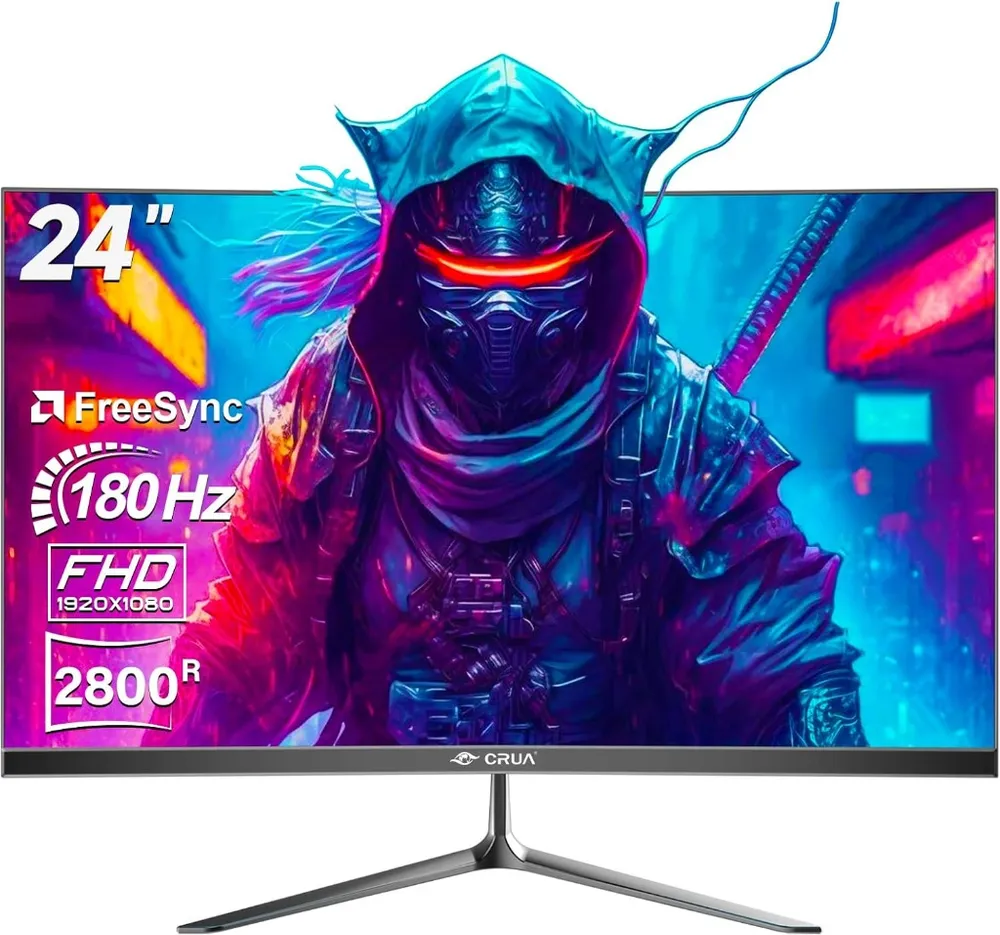
CRUA 24" 180Hz
CRUA
Pushing refresh rates to 180Hz gives competitive players extra motion smoothness for fast crosshair flicks. The subtle 2800R curve provides wide viewing angles without distortion.
- Refresh Rate
- 180 Hz
- Response Time
- 1 ms MPRT
- Curvature
- 2800R Curved
- Resolution
- 1920 × 1080 FHD
- 180Hz refresh rate gives an edge over standard 144Hz displays in fast tactical shooters
- DisplayPort and HDMI inputs make dual-device switching seamless
Built-in speakers are basic; dedicated headsets or speakers are recommended
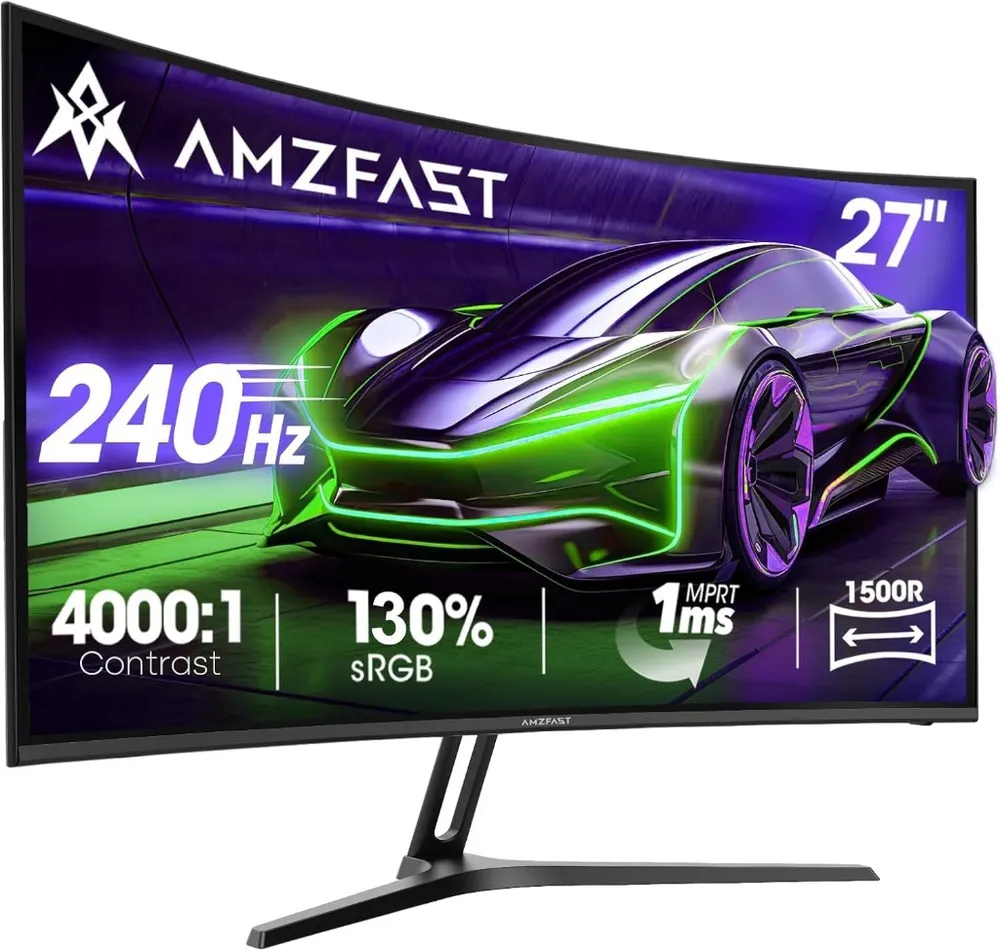
AMZFAST 27" 240Hz
AMZFAST
240Hz speed on a large 27-inch curved panel. Deep 4000:1 contrast ratio makes dark corners in CS2 maps like Mirage and Anubis much easier to spot enemies in.
- Refresh Rate
- 240 Hz
- Response Time
- 1 ms MPRT
- Contrast Ratio
- 4000:1
- Screen Size
- 27 inch 1080p
- 240Hz refresh rate delivers tier-1 tournament motion fluidity
- High 4000:1 static contrast provides deep blacks and high shadow visibility
27-inch at 1080p has lower pixel density than 1440p panels
FAQ
Frequently asked
How do I remove the black bars in CS2 4:3?
The black bars mean your GPU is not stretching the image. On Nvidia, open Nvidia Control Panel, go to Display, Adjust desktop size and position, set Scaling to Full-screen, set Perform scaling on to GPU, and tick Override the scaling mode set by games and programs. On AMD, open AMD Software, Gaming, Display, and turn GPU Scaling on with Scaling Mode set to Full Panel. CS2 must also be running in exclusive Fullscreen, not Windowed Fullscreen.
Does 4:3 stretched resolution make hitboxes bigger in CS2?
No. Hitboxes are calculated on the server and are identical at every resolution. What changes is what you see: stretching a 4:3 image across a 16:9 panel widens player models on screen by about 33%, so the same hitbox is easier to click.
What is the most popular 4:3 resolution in CS2?
1280x960. It is the resolution used by m0NESY, ZywOo, NiKo and s1mple, and it is the best balance of the four: sharp enough to see a head at range, low enough to leave frames on the table for a high refresh rate monitor.
Does 4:3 stretched give you more FPS?
Yes, if your GPU is the bottleneck. 1280x960 renders 1.23 million pixels against 2.07 million at 1920x1080, so 41% fewer. On a CPU-limited system the gain is small, because CS2 is unusually CPU-bound and the frames were never being lost to pixels.
Is 4:3 stretched better than 16:9 in CS2?
It is not strictly better. You gain wider player models and frames; you lose 16 degrees of horizontal field of view and you have to relearn how fast targets cross the screen. It is worth a genuine two-week trial rather than a single session.
Does changing to 4:3 change my sensitivity?
Your sensitivity value and your centimetres per 360 degrees are unchanged. What changes is how far a target appears to move for the same mouse movement, because the image is horizontally compressed into the same panel width. Most players need a few days to recalibrate, and a few settle on a slightly lower sensitivity.